Versions and History
Every edit, replacement and AI edit of a video is saved as a version. This page shows you how to find them, preview them and choose which one is live.
Open Version history
- Open the video in the Studio.
- Click More actions (the three-dot menu) in the top bar.
- Choose Version history. You can also press H.
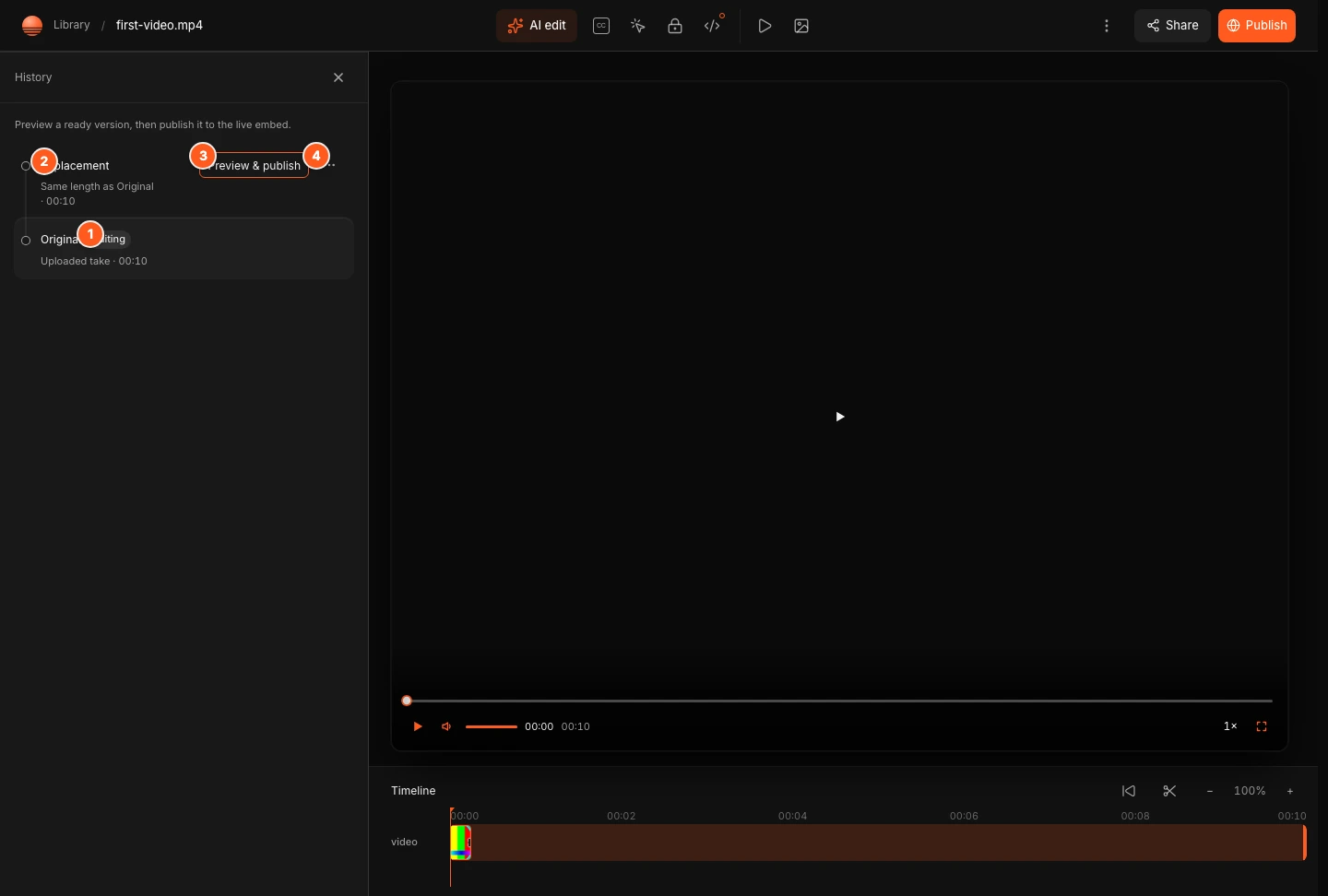
The History panel opens on the left, newest version first. It says "Preview a ready version, then publish it to the live embed."
Read a row
Each row has a title, a status, a short description and small tags for the tools that version uses.
- Title
- The first upload is Original. A finished AI edit is Automatic edit. A file swapped in with Replace video is Replacement. Other cuts have a short label such as AI recut.
- Description
- For an AI edit it lists the parts of the original that were kept, for example "Kept 3 segments (0:00–0:08, 0:15–0:42, and 0:50–1:20) of a 1:30 take." Other rows show the length and how it compares with the version before.
- Status
- Editing is the version open in the Studio. Published is the live version that every embed serves. Failed and Encoding show a version that did not finish or is still being prepared.
- Tags
- Captions, CTA, Playgate and HTML show which tools are switched on in that version.
Publish an earlier version
- In the History panel, click Preview & publish on the version you want.
- Watch it in the Preview before publishing window. The live embed stays on its current version. Preview plays and form entries are not counted.
- Click Publish this version to make it live everywhere the embed is used, or Keep editing to close the window without changes.
Preview & publish is only available for versions that are ready.
Edit an earlier version
To continue from an older version, click the three-dot button on its row and choose Edit this version. The Studio opens that version as your working draft. Nothing changes for viewers until you publish.
Draft or live
Changes you make in the Studio save as a draft. The top bar briefly shows Saving draft and then Draft saved. The Publish button is only active when you have something to publish. Otherwise its tooltip says "No unpublished changes. The live embed already matches."
Click Publish to put your current version live. You see "Live. Every embed is serving this version."
AI edits in History
When an AI edit finishes, it opens as your draft with the label Automatic edit. Your live version stays marked Published until you click Publish edit in AI edit or publish it from the top bar. If you choose Keep as draft or Discard, the edit stays in History for now, so you can preview it later. See AI edit.
History does not keep everything
OhPlayer keeps your original, the live version, the version you are editing and the most recent other version. Older versions are removed automatically, so publish or note down anything you want to return to.
When History is empty
A video with no versions yet shows No encodes yet. Cuts and AI edits you make appear here once they exist.
Next steps
Was this page helpful?
Your answer stays in your browser. Nothing is sent to us or to anyone else.