- Pro
Leads and exports
This page shows where to find the people who submitted a lead form, how to download them and how to delete them.
Where leads come from
A lead is a viewer who filled in a form (a playgate) before or during your video. Leads are collected only while your account is on Pro. To add a form, see Lead forms (playgates).
Viewers must tick a consent box before they submit: "I agree to share my details with the owner of this video to access the video." OhPlayer stores that text with each lead.
Open the Leads panel
Click Analytics in the sidebar, then click Leads at the right of the toolbar. A number on the button shows how many leads match. Set the video picker and date range first: the panel lists only leads for the videos and period you selected.
Read the table
The panel is titled Captured leads (N). Its columns are Date, Video, Email, Name, Phone and Action. A dash means the form did not ask for that field. Click Load more leads to see older rows.
Download the list
Click Export N leads (CSV). The file includes every matching lead, not only the rows on screen. It is named ohplayer-leads-<date>.csv and has these columns: Date (UTC), Lead ID, Video ID, Video, Email, Name, Phone and Consent.
If you see "Too many exports. Please wait a minute and try again.", wait and click again.
Delete a lead
Click Delete lead in the row and confirm. OhPlayer deletes the lead and any deliveries to your tools that are still queued for it. Copies you already received in Zapier, a webhook or a spreadsheet stay where they are.
Keep or delete leads automatically
OhPlayer deletes leads after 30 days, 90 days or 1 year. The default is 90 days. Change it in Account → Data & privacy. See Data, privacy and cookies. Export first if you need older leads.
Contact details are stored encrypted, and only your account can see them.
Leads on Lite
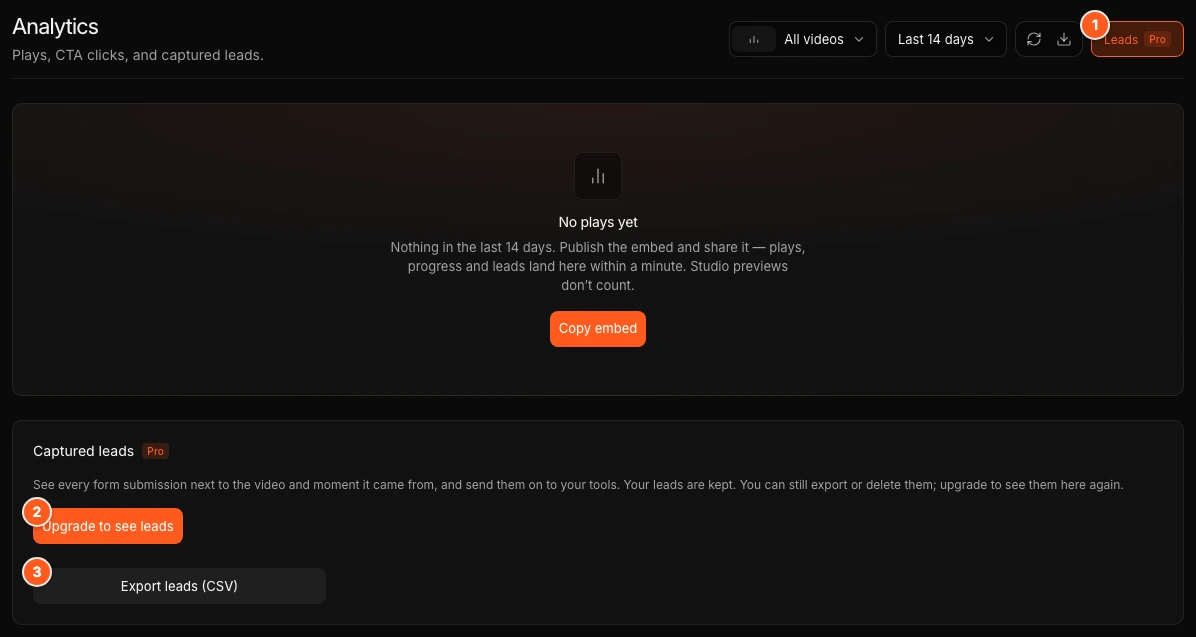
Leads are a Pro feature. If your account moves to Lite, OhPlayer keeps your leads and pauses new collection. The panel shows Captured leads with a Pro badge and Upgrade to see leads. You can still click Export leads (CSV) to download them. Upgrade to see the list again.
Send leads to your own tools
Leads can go to your CRM or spreadsheet as they arrive. See Webhooks and Zapier. Existing leads are not sent again when you add a connection.
Next steps
Was this page helpful?
Your answer stays in your browser. Nothing is sent to us or to anyone else.