Sign in, free preview and trial
This page explains how to sign in, what you can do before you pay, and how the 14-day trial works.
Sign in
OhPlayer uses Google sign-in. Open the sign-in page and click Sign in with Google. Choose your Google account. New here? The same button creates your account.
You stay signed in on that browser for 7 days. Your password and two-step verification stay in your Google Account. You can sign out from Account → General.
If sign-in does not finish, the page shows "Google sign-in did not complete. Please try again." Click the button again.
If you picked a plan on the pricing page
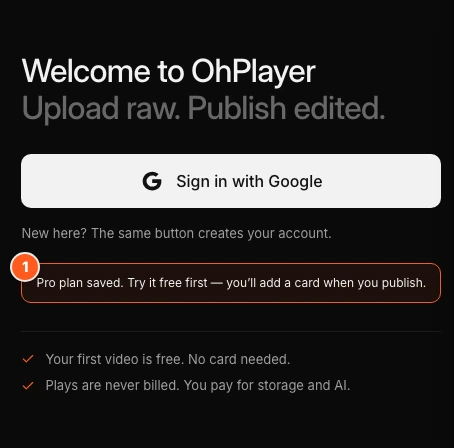
When you come from a plan on the pricing page, the sign-in page says, for example, "Pro plan saved. Try it free first — you’ll add a card when you publish." You do not add a card now. You go through the same first steps as everyone else, and OhPlayer asks for the card when you publish.
The plan you picked is chosen for you wherever the trial is offered, and it is marked You picked. You can still switch to the other plan there.
Free preview
After your first sign-in you are on the free preview. It needs no card and has no time limit.
- You can add one video, up to 2 GB.
- You get 5 AI credits, enough for a transcript and one AI edit on a video of up to about 15 minutes.
- You can edit the video in the Studio and check the AI edit privately.
- The share link and the embed stay locked. Publishing starts your trial.
- You cannot add a second video or replace the first one. The app says "The free preview includes one video. Start your 14-day trial to add more." or "Replacing a video starts with your trial."
Start your trial to publish
Click Share
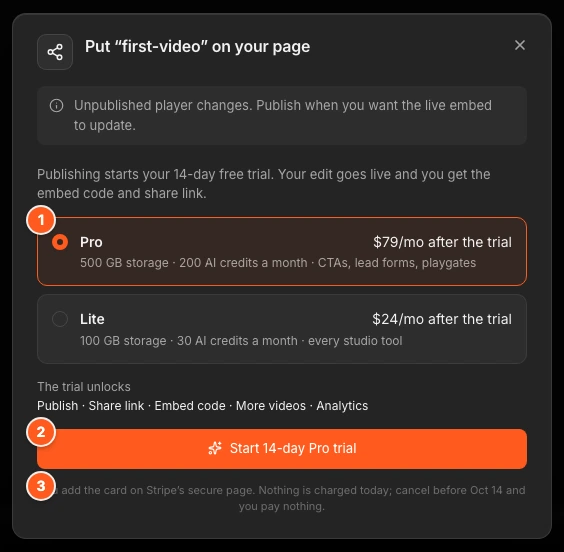
Open your video in the Studio and click Share. On the free preview the dialog is called Put “your video name” on your page. It says "Publishing starts your 14-day free trial. Your edit goes live and you get the embed code and share link."
Pick Pro or Lite
Choose Pro ($79/mo after the trial) or Lite ($24/mo after the trial). Pro is chosen unless you picked Lite on the pricing page. Under the choice, the dialog lists what the trial unlocks: Publish, Share link, Embed code, More videos and Analytics.
Add your card on Stripe
Click Start 14-day Pro trial (or Start 14-day Lite trial). The button shows Opening Stripe… and Stripe's secure checkout page opens. Add your card there.
Nothing is charged today. The dialog shows the date of your first charge. Cancel before that date and you pay nothing. OhPlayer never sees your card number.
Publish
When you finish on Stripe, you come back to your video with Share open. Your trial is on. A message confirms it, for example "Pro trial started · 14 days. First charge $79 on [date]. Cancel anytime in Account › Plan." Publish, then copy your link or embed code.
If you close Stripe's page without finishing, you come back to the same place and see "Checkout canceled. Nothing was charged."
Other places the trial is offered
- A locked feature on the free preview opens a Start your free trial dialog with the same Pro and Lite choice.
- During onboarding, the top of the page has a Start 14-day trial link. If you picked a plan on the pricing page, it reads, for example, Pro trial · add card.
- In Account → Plan & Billing, click Start Lite or Start Pro.
Each account gets one trial. If you have already used yours, Stripe charges the plan price when you start it.
What the trial includes
The trial gives you your chosen plan's features with lower caps. The caps lift when your plan starts.
| Free preview | Trial | Lite | Pro | |
|---|---|---|---|---|
| Card needed | No | Yes | Yes | Yes |
| Videos | 1 | Any number | Any number | Any number |
| Storage | 2 GB | 25 GB | 100 GB | 500 GB |
| AI credits | 5 | 20 (2 hours) | 30 (3 hours) | 200 (20 hours) |
| Publish, share and embed | Locked | Yes | Yes | Yes |
| Viewing | Not published | 200 GB over the whole trial | No traffic limit | No traffic limit |
Watch pages from trial accounts are not indexed by search engines.
Trial viewing limit
Trial viewing is counted from the day your trial starts, not per calendar month. A banner shows at the top of the app as you get close:
- At 80%: "You've used 80% of your trial viewing." You can hide this one for 24 hours.
- At 95%: "Almost at your trial viewing limit."
- At 100%: "Your embeds are paused." Players show a paused screen until you start your plan.
Click Start plan now in the banner to end the trial early. The dialog shows the card on file and what is charged today. Unused trial days are not carried over. If the card is declined, nothing changes and your trial stays as it was. We also email you at 80% and at the limit.

Cancel during the trial
Open Account → Plan & Billing and click Manage billing. Cancel in Stripe before the trial ends and you pay nothing. Your card is charged when the trial ends unless you cancel first.
When the trial ends
If your plan starts, nothing changes except that the trial caps lift.
If you cancelled, or the first payment fails, the plan has ended. A banner at the top of every page says so. Uploading, AI edits and publishing pause. Published videos keep playing for 3 more days, then the player shows a paused screen until you start a plan. Nothing is deleted. We email you when the plan ends and again when the 3 days are over. See When your plan ends.
Next steps
Was this page helpful?
Your answer stays in your browser. Nothing is sent to us or to anyone else.