Quickstart
Go from a new account to a published, embeddable video in six steps.
Sign in
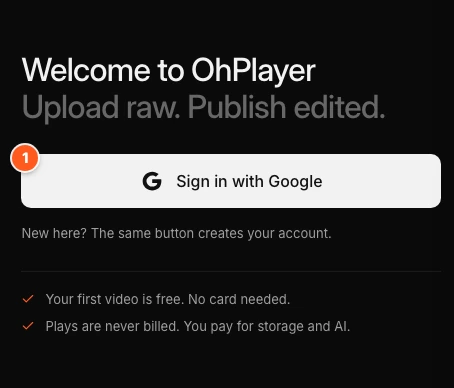
Open the OhPlayer app and click Sign in with Google. New here? The same button creates your account.
You start on the free preview. You can try the editor on one video without adding a card. You add a card only when you publish, which starts your 14-day trial. If you picked a plan on the pricing page, it is saved for that moment. See Sign in, free preview and trial.
Say what you are making
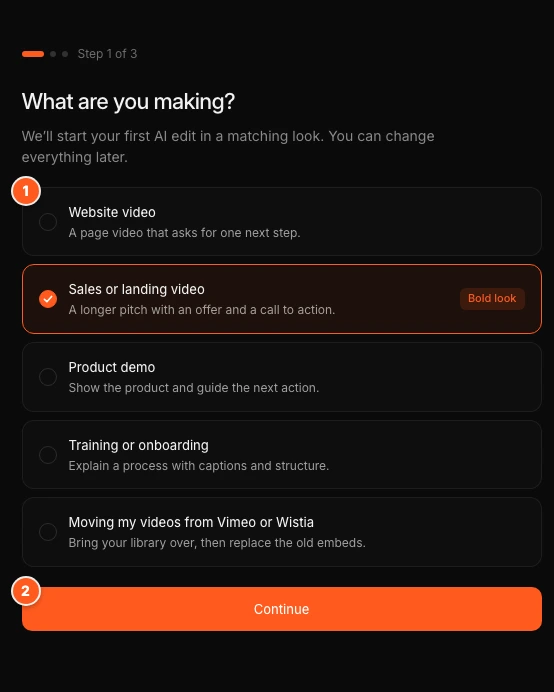
The first screen asks What are you making? Choose Website video, Sales or landing video, Product demo, Training or onboarding or Moving my videos from Vimeo or Wistia, then click Continue. Your choice picks the look of your first AI edit: Bold for a sales video, Clean for the others. You can change it later.
Click Skip for now if you would rather go straight to the Library.
Add your video
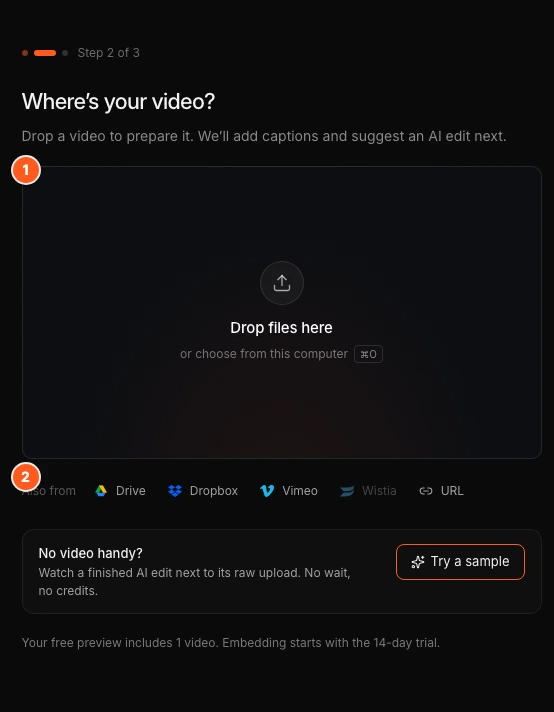
On Where's your video?, drop a file, or choose one from your computer. MP4, MOV and WebM files up to 2 GB work. Under Also from you can pick other sources. See Import a video for all of them.
Wait for your video
The page shows two stages: Upload and Preparing playback. While you wait, a sample shows what an AI edit does. Move across the video to compare the raw upload with the edit. Captions are added in the background after the video is ready.
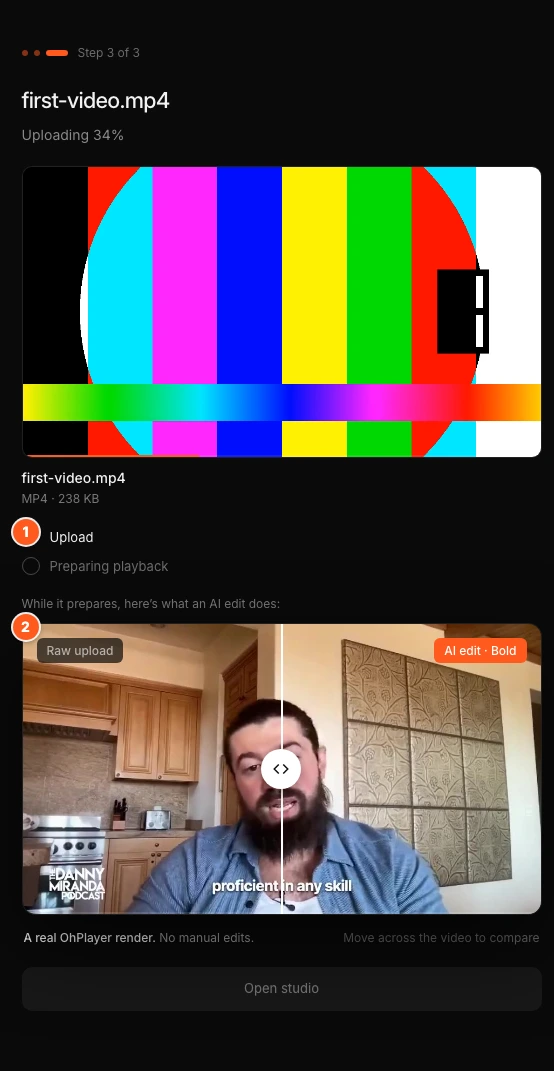
When the video is ready, click Open studio.
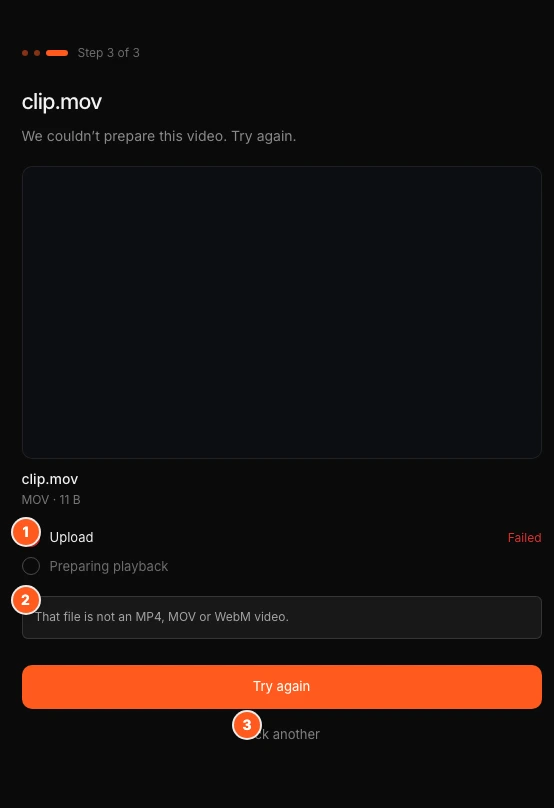
If something goes wrong, the stage that failed turns red and the page says "We couldn’t prepare this video. Try again." The reason shows below the stages. Click Try again, or Pick another to choose a different file.
Check your AI edit
The first time you open the Studio, a card says Your AI edit starts in a moment. The AI edit starts by itself as soon as captions are ready, in the look your goal picked. This card does not show if you chose Moving my videos from Vimeo or Wistia. Click Start now to open AI edit straight away, or Not now to skip it. You can start an AI edit later with AI edit in the top bar.
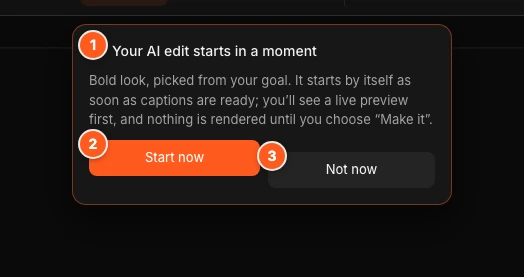
Only one helper shows at a time. The Get it live checklist appears after the AI edit card is gone.
When the plan is ready, look it over and click Looks good — make it. It takes a few minutes, and you can leave the page. When it is ready, click Publish edit. Nothing is rendered until you choose to make it, and nothing goes live until you publish. The full flow is in AI edit.
Publish and share
If you did not publish from AI edit, click Publish in the top bar. On the free preview, Share asks you to start your trial first: pick Pro or Lite and add your card on Stripe's secure page. Nothing is charged until the trial ends. See Start your trial to publish.
Then click Share. Copy the link to send it, or copy the embed code and paste it into your page. The embed code stays the same when you publish changes later. See Embed on your site.
Only need the player?
You can skip AI edit. Add captions, a CTA or other tools in the Studio, then click Publish. See the Studio tour.
Next steps
Was this page helpful?
Your answer stays in your browser. Nothing is sent to us or to anyone else.