Thumbnails and posters
The thumbnail is the still image viewers see before they press play.
Open the Thumbnail panel
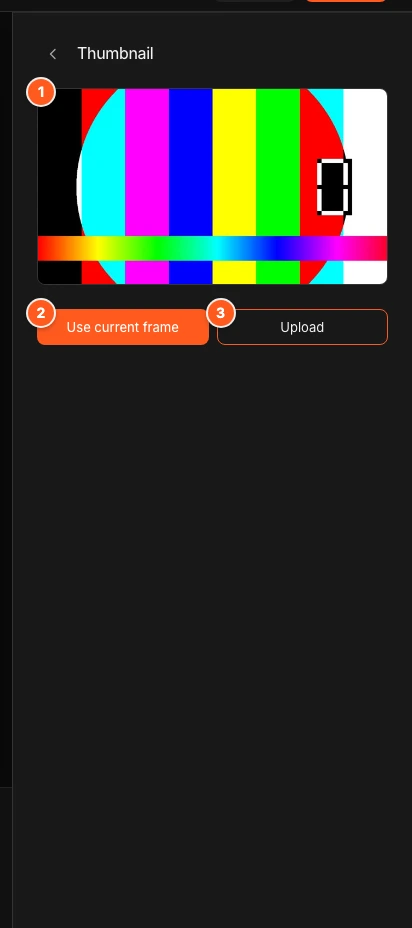
Click Thumbnail in the Studio tool dock, or press I. The panel shows the current poster. If it says “Wait until encoding finishes before grabbing a thumbnail.”, the video is still processing.
Pick a frame from the video
Move the playhead to the frame you want. Then click Use current frame. The button reads Capturing… while it works.
The playhead must be on that frame. If it is not, you see “Seek to the frame you want, then choose Use current frame.” Play or seek the video first if you see “Play or seek the video to load a frame first.”
Or upload your own image
Click Upload and choose a JPEG file up to 2 MB. Other formats, such as PNG, are not accepted. If it fails you see “That still could not be uploaded.”
Publish
The thumbnail saves as a draft. Viewers keep seeing the old one until you click Publish. See Publish and share.
Where the thumbnail shows
The thumbnail shows on your watch page and in the embedded player before playback starts.
Choose a good one
Pick a frame with a clear face or a clear product shot. Avoid title cards and dark frames.
Set it last
Choose the thumbnail after you finish cutting. A new cut can move the best frame to a different time.
Next steps
Was this page helpful?
Your answer stays in your browser. Nothing is sent to us or to anyone else.