- Pro
Timed CTAs
A timed CTA puts a clickable button over your video at the moment you choose.
Turn on the CTA tool
Click CTA in the Studio tool dock, or press G. Turn on the Enable CTA switch in the panel header. OhPlayer adds a CTA at the current playhead and opens it for editing.
You can have one CTA per video.
Set when it shows
- Starts
- The time the button appears.
- Hides
- The time the button goes away. Leave it empty (the box says “end”) to keep the button on screen until the video ends. Under the times you see how long it is on screen, for example “12s on screen”.
Type times like 0:08 or 1:30.
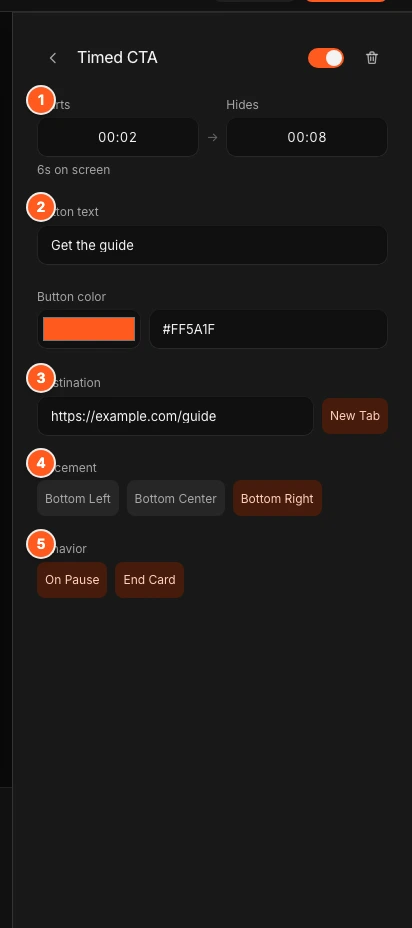
Write the button
- Button text
- The label on the button. A new CTA says “Learn more”.
- Button color
- Pick a colour. The text colour adjusts so it stays readable.
- Destination
- The web address the button opens. It must start with http:// or https://.
- New tab
- On by default. The link opens in a new tab.
A new CTA points to example.com. Replace it, or you see “Placeholder link. Add where this button should go before you publish.”
Choose placement and behavior
Placement is Bottom left, Bottom center or Bottom right. You can also drag the button on the canvas.
Behavior has two buttons you can turn on or off. Both are on for a new CTA.
- On pause: if a viewer pauses before the Starts time, the button shows while they are paused. It never shows after Hides.
- End card: when the video ends, the CTA shows on an end screen with a Watch again button.
Publish
CTA changes save as a draft. Click Publish to put them live. See Publish and share.
Fix an error
| Message | What to do |
|---|---|
| Add a CTA label. | Type text for the button. |
| Use an http:// or https:// URL. | Enter a full web address. |
| CTA time must be inside the video duration. | Pick a Starts time before the video ends. |
| Close beat must be at or after the offer time. | Make Hides later than Starts. |
Remove a CTA
Open the CTA, click the trash icon, and confirm Delete CTA? with Delete. To pause it without deleting it, turn off Enable CTA.
Plans
Timed CTAs are on Pro. On Lite the CTA button shows a Pro badge and opens an upgrade message. If you move from Pro to Lite, your CTAs are saved but paused, and viewers see the plain video. See Plans and limits.
Next steps
Was this page helpful?
Your answer stays in your browser. Nothing is sent to us or to anyone else.