Captions and transcripts
Captions show the words of your video on screen, and the transcript lets you edit them.
Open the Captions panel
Click Captions in the Studio tool dock, or press C. Wait until the video is ready first.
Get captions
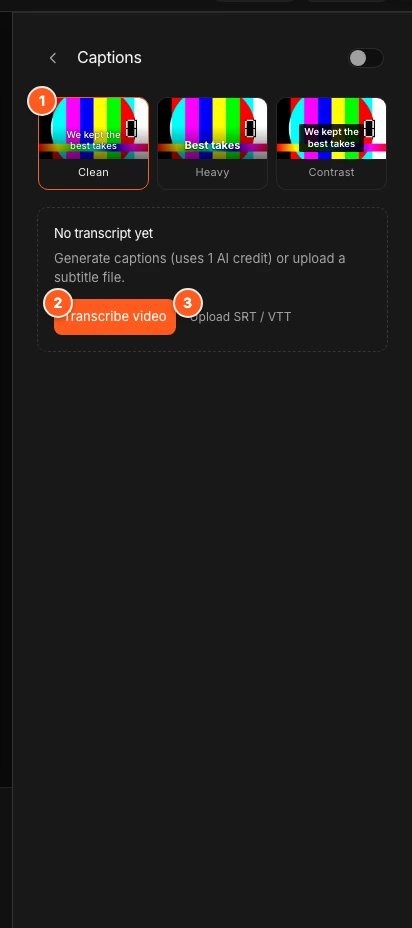
You have two ways to add captions. Both are links under the panel.
- Transcribe video listens to the audio and writes the captions. If captions already exist, the link reads Transcribe again.
- Upload SRT / VTT loads a subtitle file from another tool. Files must be .srt or .vtt.
While OhPlayer transcribes, the top bar shows Transcribing speech…. When it finishes you see "Transcript ready." and captions turn on. After an upload you see "Transcript loaded.". Turn on the Enable captions switch in the panel header to show an uploaded file.
Choose a look
The three looks are on the first screen of the panel.
- Clean: medium weight, wraps to two lines.
- Heavy: one short, heavier line.
- Contrast: text on a dark panel.
Edit the transcript
Once captions exist, the panel shows the transcript. Use Search transcript to find a line.
- Click a time to jump the video to that line.
- Click a line to select it, then edit the text in place. An empty line is not allowed.
- To move a line in time, drag its block in the captions lane of the timeline.
Click the back arrow in the panel header to return to the looks. To remove all captions, click the trash icon on the transcript row (Delete transcript).
What it costs
Uploading a file is free. Transcribe video uses AI credits: 1 credit for every 6 minutes of video, rounded up, with a minimum of 1. The panel tells you the number before you click, for example "Generate captions (uses 1 AI credit) or upload a subtitle file." See Credits explained.
Transcription works on videos up to two hours. If you have used your allowance you see "AI allowance reached. Upgrade your plan or try again later."
Captions from an AI edit
When an AI edit adds captions, they are drawn into the picture. The panel then says "Captions are part of this AI edit’s video, so they always show." and has no on and off switch. To change them, run the AI edit again or restore the original in History. See AI edit.
What viewers see
Captions show over the video and are on by default. Viewers get a CC button in the player to hide or show them. If a video has no captions, the button is not there.
Changes to captions save as a draft and go live when you click Publish.
Next steps
Was this page helpful?
Your answer stays in your browser. Nothing is sent to us or to anyone else.