Replace a video
Replace video swaps the file behind a video and keeps its link and embed code.
Open Replace video
Open the video in the Studio, click More actions (the three-dot menu) in the top bar, and choose Replace video.
You can also drop a new file onto the video in the Studio. OhPlayer asks “Replace your video name?” Click Replace video to go on or Keep current to cancel.
Choose the new file
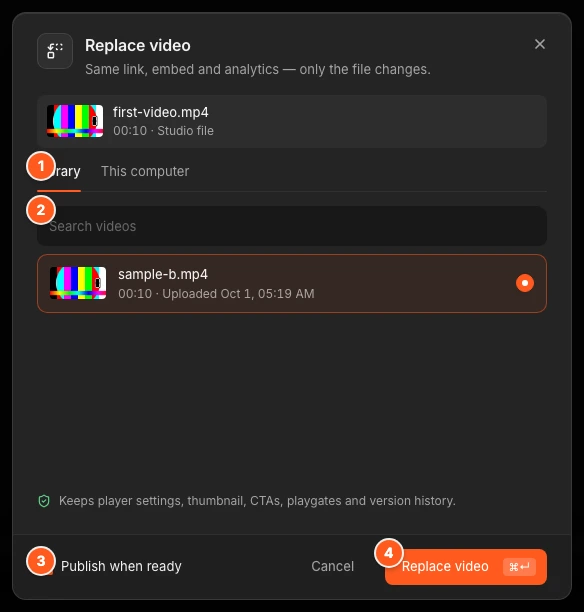
The window has two tabs.
- Library
- Pick another video already in your account. Use Search videos to find it. The video you are replacing is not in the list.
- This computer
- Drop a file or click Browse. MP4, MOV and WebM files work, up to 2 GB.
Decide when it goes live
Publish when ready is on by default. The new file goes live by itself as soon as it has finished encoding.
Turn it off to review first. The old file keeps playing, and the new file waits in History until you publish it.
Replace and wait
Click Replace video. The window shows Uploading file, Encoding and then Publishing live (or Ready in History if you turned Publish when ready off). Existing embeds keep working the whole time.
When it is done, you see “Video replaced — every embed is now serving the new file.” If you turned Publish when ready off, you see “Replacement is encoding. Publish it from History when you want it live.”
What stays the same
- The video’s embed code and link
- Views, leads and other analytics for this video
- Player settings, CTAs and playgates
What you need to redo
Captions belong to the file, so they are not copied. Open Captions and transcribe again or upload an SRT or VTT file.
If something goes wrong
If encoding fails, the old file stays live and the window shows the error. Open Version history to publish any earlier version that is ready.
| Message | What it means |
|---|---|
| A replacement is already in progress for this video. | Wait until the current replacement finishes. |
| Upload a video between 1 byte and 2 GB. | Pick a smaller file. |
| Unsupported file. Use an MP4, MOV, or WebM video. | Convert the file first. |
| Replacing a video starts with your trial. | You are on the free preview. See Sign in, free preview and trial. |
Storage counts the new file. If you reach your limit, remove a video or upgrade. See Plans and limits.
Next steps
Was this page helpful?
Your answer stays in your browser. Nothing is sent to us or to anyone else.